
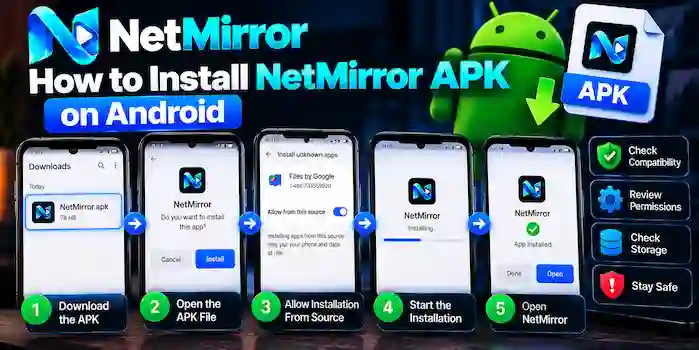
Installing an APK on Android is slightly different from installing an app through Google Play. If you have a NetMirror APK file and want to install it on your Android phone, the process is generally straightforward. However, you should first make sure the APK comes from a trustworthy source and is compatible with your device.
This guide explains how to install NetMirror APK on Android and what to check if the installation does not work.
What Is an APK?
APK stands for Android Package Kit. It is the file format Android uses to install applications.
When an app is distributed outside Google Play, it may be provided as an APK file. Android can install the file after you give the relevant installer permission.
Before Installing NetMirror APK
Before starting, check a few basic things:
- Make sure your phone has enough free storage.
- Check that your Android version is supported.
- Make sure the APK is from a source you trust.
- Check the APK file name and version.
- Keep Android security features enabled.
- Avoid APK files that trigger unexplained security warnings.
These checks can help prevent compatibility and installation problems.
How to Install NetMirror APK on Android
Step 1: Download the APK
First, obtain the NetMirror APK file from a source you trust.
After downloading, you can usually find the file in your phone’s Downloads folder.
Before continuing, check that the file has the expected .apk extension.
Step 2: Open the APK File
Open your Android Files, File Manager, or Downloads application.
Locate the downloaded NetMirror APK and tap it.
Android should display an installation screen with information about the application.
Step 3: Allow Installation From the Relevant Source
Depending on your Android version, you may see a message saying that your current source is not allowed to install unknown applications.
If this happens, Android may provide a button that takes you to the appropriate settings.
You can then allow the specific application you are using, such as your browser or file manager, to install APK files.
The exact menu can differ between Android phones.
Step 4: Start the Installation
Return to the APK file and tap it again.
Review the installation screen and select Install if you are satisfied that the file is legitimate and compatible with your device.
Wait while Android processes the package.
Step 5: Open NetMirror
After installation finishes, Android may display an Open button.
You can tap it to launch the application.
Alternatively, find NetMirror in your app drawer and open it from there.
Check Permissions After Installation
Once NetMirror is installed, it is a good idea to review its permissions.
Go to:
Settings → Apps → NetMirror → Permissions
The exact path may vary depending on your phone manufacturer and Android version.
Only grant permissions that make sense for the application’s intended functionality. If you see a permission you do not understand, investigate it before allowing access.
What If NetMirror APK Won’t Install?
If the installation fails, several common issues could be responsible.
1. Incompatible Android Version
The APK may require an Android version that your phone does not support.
Check the application’s stated requirements and compare them with your device’s Android version.
2. Not Enough Storage
A lack of free storage can prevent applications from installing.
Check:
Settings → Storage
Free up some space if your device is nearly full, then try the installation again.
3. Corrupted APK
An incomplete or damaged download can cause installation errors.
If the file appears unusually small or the download was interrupted, obtain a fresh copy from a trustworthy source rather than repeatedly attempting to install the same file.
4. Existing App Conflict
If an older version of NetMirror is already installed, the new APK may conflict with it, particularly if the packages or signing information differ.
Check your installed applications before trying another version.
5. Unknown-App Installation Is Blocked
Android may prevent installation when the application used to open the APK does not have permission to install unknown applications.
Check the relevant Android security setting and only enable installation permission for a source you trust.
How to Uninstall NetMirror
If you no longer want the application, you can normally remove it through Android’s app settings.
Go to:
Settings → Apps → NetMirror → Uninstall
You can also press and hold the NetMirror icon on many Android devices and select Uninstall.
Is Installing an APK Safe?
APK installation itself is a normal Android feature, but the safety of an APK depends heavily on the file and its source.
Be cautious with files that:
- Come from unknown websites
- Have unexpected names or extensions
- Request unusual permissions
- Trigger Android security warnings
- Claim to provide features that are unrelated to the application
- Require additional suspicious applications to be installed
Don’t disable important Android security protections simply to force an APK to install.
Final Thoughts
Learning how to install NetMirror APK on Android is simple once the file is compatible and Android allows installation from the selected source. Download the correct APK, review the file, open it through your file manager, follow Android’s installation prompts, and check the application’s permissions afterward.
If the APK fails to install, check your Android version, available storage, existing app installation, and the integrity of the downloaded file before trying again.