
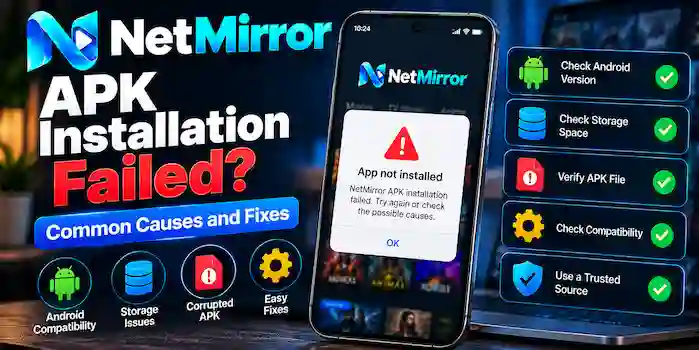
If you see a NetMirror APK installation failed message on your Android device, the problem can have several causes. The APK may be incompatible with your Android version, the download may be incomplete, storage may be limited, or an existing application package may conflict with the new installation.
Instead of repeatedly downloading APK files from different websites, it is better to identify the actual cause first.
This guide explains the most common NetMirror APK installation problems and practical checks you can make before trying again.
Why Does NetMirror APK Installation Fail?
An APK installation can fail for different reasons.
Common causes include:
- Incompatible Android version
- Corrupted or incomplete APK download
- Insufficient storage
- Existing application conflict
- Incorrect APK package
- Device security restrictions
- Unsupported device architecture
- Damaged installation file
- Outdated Android software
The exact cause depends on the error displayed by your device.
Check the APK File First
Before changing your Android settings, make sure the downloaded file is actually the intended APK.
Check:
- File name
- File extension
- File size
- Download source
- Version information
- Android requirements
If the download stopped before completion or the file appears unusually small, the package may be incomplete.
Do not assume that downloading the same file repeatedly will solve the problem.
Check Android Compatibility
One of the most common reasons for an installation failure is an incompatible Android version.
An APK can require a newer version of Android than the one installed on your phone.
To check your Android version:
- Open Settings.
- Find About phone or About device.
- Look for Android version.
- Compare it with the application’s stated requirements.
The exact menu names vary between Android manufacturers.
If your device does not meet the required Android version, installing a newer APK may not be possible.
Check Available Storage
Insufficient storage can also prevent an application from installing.
Even if the APK itself is relatively small, Android may require additional space while installing and preparing the application.
Check your available storage under your device’s storage settings.
If storage is nearly full, consider removing unnecessary files or applications before trying again.
Check Whether NetMirror Is Already Installed
An existing NetMirror installation can sometimes conflict with another APK package.
For example, the new file may have different package information or may not be compatible with the currently installed version.
Check your installed applications and determine whether NetMirror is already present.
If you are replacing an existing version, make sure you understand what will happen to any saved application data before removing or changing it.
Check for an Incomplete Download
A damaged or incomplete APK can produce installation errors.
This can happen if:
- The internet connection dropped.
- The download was interrupted.
- The browser stopped the download.
- The hosting server returned an incomplete file.
- The file was modified or packaged incorrectly.
If the file appears incomplete, do not keep attempting to install it.
Instead, verify the source and obtain a valid compatible package.
Check the APK Source
The website providing the APK matters.
Different websites can distribute files with the same application name, but the files may not be identical.
Be cautious with pages that:
- Redirect repeatedly
- Use misleading download buttons
- Offer unrelated installers
- Ask you to disable security protections
- Provide little information about the file
- Claim every version is guaranteed safe
A failed installation can sometimes be a sign that the file is not suitable for your device.
Android Security Restrictions
Android may restrict installation of applications obtained outside supported app-distribution channels.
Depending on your Android version and device configuration, you may see a security warning when attempting to install an unfamiliar APK.
Do not disable security protections simply because an installation fails.
Instead, read the warning carefully and verify the application source before making any decision.
Check Device Architecture
Some Android applications are distributed in formats designed for particular processor architectures.
If an APK is not compatible with your device architecture, installation may fail or the application may not work correctly.
This is especially relevant when a download page offers multiple APK variants.
Choose a package only when you can verify that it matches your device requirements.
NetMirror APK Parse Error
A parse-related error can indicate that Android cannot properly process the APK.
Possible causes include:
- Incompatible Android version
- Damaged APK
- Incorrect package
- Unsupported application format
- Incomplete download
Start by checking the Android requirements and the integrity of the downloaded file.
NetMirror APK App Not Installed Error
If Android displays an “App not installed” message, the cause may be related to compatibility, package conflicts, storage, or the APK itself.
Try these checks:
- Confirm the APK is compatible with your Android version.
- Check available storage.
- Verify whether another version is already installed.
- Check the downloaded file.
- Confirm the download source.
- Restart your device and try again if the file is known to be compatible.
If the problem continues, do not keep installing random APK versions.
Check Your Android Software
An outdated Android system can cause compatibility problems with newer applications.
Check whether your device has a legitimate system update available.
However, do not assume that updating Android will solve every APK problem. The application itself must still support your device.
Restart Your Android Device
A simple restart can sometimes resolve temporary system problems.
After restarting:
- Confirm that enough storage is available.
- Check the APK file again.
- Verify compatibility.
- Try the installation once more.
If the same error appears, focus on the specific error message rather than repeatedly restarting.
Avoid Installing Random Modified APKs
When an APK does not install, some users may search for a modified version that claims to “fix” the problem.
This can create additional security and compatibility risks.
A modified APK may have:
- Unknown changes
- Different permissions
- Unverified code
- Compatibility issues
- Unclear source information
It is better to identify the original compatibility problem instead of switching to an unknown modified file.
NetMirror APK Installation Failed After Download
If the installation fails immediately after downloading the file, check whether the download completed correctly.
Compare the downloaded file information with the details provided by the source.
Also consider whether:
- Your browser interrupted the download.
- Your internet connection was unstable.
- The file was removed or changed.
- The download page provided an incorrect file.
If the source itself appears suspicious, avoid downloading another copy from the same page.
NetMirror APK Installation Failed on Older Android
Older Android devices can have compatibility limitations.
A newer APK may require system features that are unavailable on an older version of Android.
If your phone is running an older Android release, check the application’s minimum requirements before trying another version.
Do not install an APK simply because it claims to support every Android device.
NetMirror APK Installation Failed on New Android
A newer Android version can also introduce compatibility changes.
If the APK was designed for an older environment, it may not install or operate correctly on a newer device.
Check whether the application version is compatible with your current Android release.
NetMirror APK Installation Troubleshooting Checklist
Use this checklist before trying another installation:
- Check your Android version.
- Check available storage.
- Verify the APK file extension.
- Check the file size and download status.
- Confirm the APK source.
- Check whether NetMirror is already installed.
- Review compatibility requirements.
- Check device architecture when relevant.
- Read any Android security warning.
- Restart the device.
- Avoid suspicious modified APKs.
If you cannot verify the APK source or compatibility, it is better not to continue with the installation.
What to Do If Nothing Works
If NetMirror APK installation continues to fail after basic checks, identify the exact error message displayed by Android.
For example:
- App not installed
- Parse error
- Package appears to be invalid
- Incompatible application
- Insufficient storage
Each message can point toward a different cause.
You can also check whether the same APK is intended for your specific Android version and device architecture.
NetMirror APK Installation Failed vs Not Opening
Installation failure and application startup problems are different.
Installation Failed
The APK cannot be installed on your device.
Possible causes include compatibility, storage, package, or file problems.
Not Opening
The APK installs successfully but the application does not start correctly.
Possible causes include application bugs, device compatibility, corrupted installation, or system problems.
If your APK installs successfully but will not open, see our NetMirror APK Not Opening troubleshooting guide.
When Should You Check the Latest Version?
If your current APK is outdated, a compatible newer release may resolve certain bugs or compatibility problems.
However, do not install a new version solely because a website labels it “latest.”
Check:
- Version information
- Android requirements
- Source reliability
- Update details
- Device compatibility
For more information, read NetMirror APK Latest Version.
NetMirror APK Installation FAQs
Why does NetMirror APK installation fail?
Common causes include Android incompatibility, insufficient storage, a corrupted APK, package conflicts, device restrictions, or an unsuitable file.
Why does Android say “App not installed”?
The message can appear for several reasons, including incompatible packages, existing application conflicts, unsupported Android versions, or damaged APK files.
Can insufficient storage cause APK installation failure?
Yes. Android may require additional space beyond the APK’s file size during installation.
Why does NetMirror APK show a parse error?
A parse error can be caused by an incompatible Android version, damaged APK, unsupported package, or incomplete download.
Should I download another APK if installation fails?
Not immediately. First identify the cause and verify whether the current file is compatible and trustworthy.
Can an old Android version prevent installation?
Yes. An APK may require a newer Android version than your device supports.
Can an existing NetMirror installation cause problems?
It can. Different package versions may conflict, especially when the APK does not match the installed application.
Should I disable Android security to install NetMirror?
You should not disable security protections simply to overcome an installation error. Investigate the file and source first.
Final Thoughts
A NetMirror APK installation failed message does not necessarily mean that your phone is broken. The problem is often related to APK compatibility, Android version, storage, package conflicts, an incomplete download, or the source of the file.
Start with the basics: check your Android version, storage, APK information, compatibility requirements, and security warnings. Avoid repeatedly installing random or modified APK files.
For related information, visit our NetMirror APK pillar page, NetMirror APK Download guide, and NetMirror for Android guide.